
Formstack offers the ability to customize your homepage and turn it into a hub that gives you quick access to your product suite and account usage info. Reducing the time it takes to get an overview of the information you need or jump into creating or viewing a key resource on your account.
In this article, we will take you through the benefits of each section/widget on the home page and how to configure them to your liking. It's important to note that all users have access to making edits to their homepage, but certain widgets will be limited to admins as listed below.
User Management Widget (Admin or Standard with user management permissions Only)
Billing and Usage Widget (Admin or Standard with user management permissions Only)
Recommended Widget
Editing the HomePage(Moving and Hiding Widgets)
Frequently Asked Questions
App Actions
The app actions component allows users to quickly navigate to their available apps to start creating Workflows, forms, documents, documents for e-signing. Admins can also start trials of the apps they do not have from this component (or Contact Sales to learn more about workflows).
User Management(Admin or Standard with user management permissions)
Please note - This widget is only available to standard user who have the user management permission enabled. For more information, check out this article.
The user management widget displays useful information regarding your organization’s users such as:
-
Total users in the org
-
Number of invited users who haven’t accepted their invitation
-
Breakdown of Admin vs Standard Organization users
-
What users have two-factor authentication(2FA) enabled along with a link to manage your security settings and enable two-factor authentication (2FA) for all users. For more information, please check out this article.
-
Number of users per available app
-
Filled seats vs available
-
App Admin vs Standard (if available)
-
Other Actions:
-
Admins can also navigate to the users page, purchase more user seats, or create a user directly from this widget.
Admins can click on the “x pending invites” link next to ‘Total users’ and will be taken to the user management page with only uses with pending invites showing.
Billing & usage(Admins Only)
Please note - This widget is only available to standard user who have the user management permission enabled. For more information, check out this article.
The Billing and Usage widget displays useful billing and app usage information including:
-
A billing snapshot with next payment date and a breakdown of the plan cost
-
Forms usage stats such as % of and number of forms user/available, % of storage used, and % of and number of portals users used (if applicable)
-
Docs usage stats such as % of and number of templates used, % and number of live merges used, % and number of test merges used, and whether auto-upgrades is on or off.
Other Actions:
Admins can also navigate to the Manage Plan page or purchase plan extras directly from this widget.
Admins can now see the last time their usage stats updated and refresh their usage stats prior to the default 24 hour refresh.
This widget will look slightly different based on if you're a paid or trial account as pictured below.
Paid
Free Trial
Quick Paths
The Quick Paths widget allows users to bookmark up to 10 url they choose for quick access. Example use cases include:
-
Important and often-read documentation
-
Favorite or often-visited Forms, Submissions pages, Workflows
Quick path icons will change based on the type of url added. Icons include:
-
External Link
-
Settings gear
-
Forms form
-
Documents doc
-
Workflow lightning bolt
- Sign e-signature
A user can edit or delete a quick path by clicking the ‘three dot’ icon in the top right corner of the quick path icon.
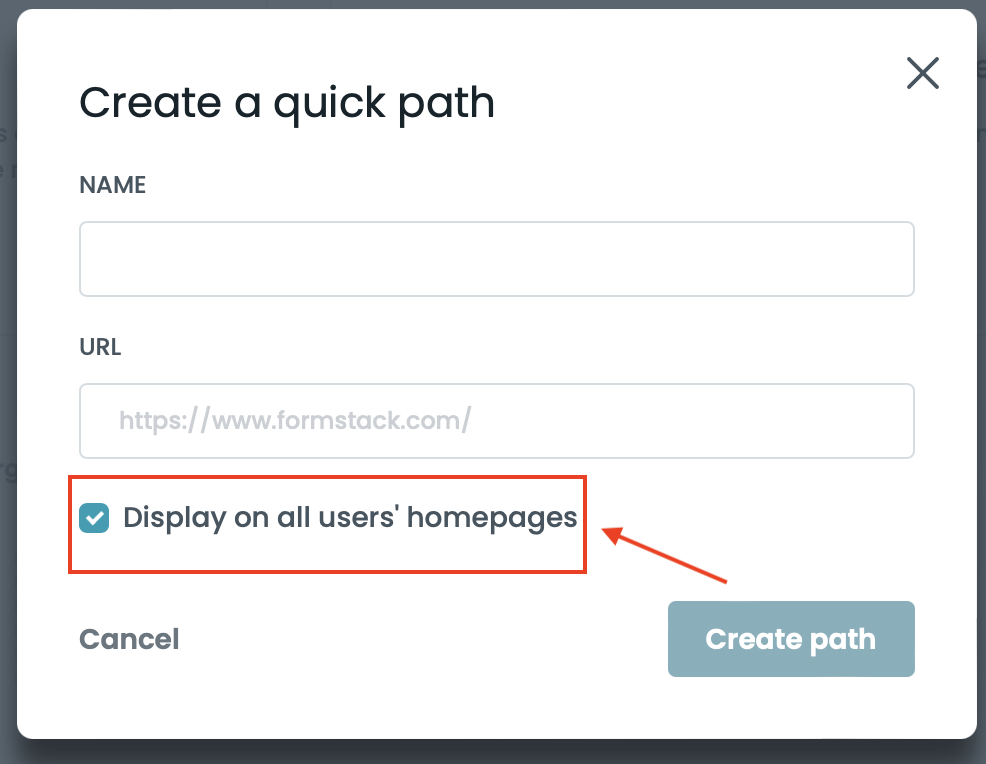
When creating a quick path, admins can “pin” up to 10 quick paths they would like to share with the rest of their users via the Quick Paths widget. These are separate from the personal quick paths that would be labeled as "My paths" when viewing your widget, and can be configured for your Org by selecting the "Display on all users homepages" option when creating a quick path.
Recommended Widget
The Recommended widget shows targeted account suggestions based on Admin or Standard user type.
Admins will see the following recommendations:
-
“Learn to use our apps” with a link to our Youtube video library
-
“Let’s make your account extra secure!” with a CTA to turn on 2FA which takes the user to the Security Settings page
-
“Invite users” with a button that navigates to the Manage Users page
Standard Users will see the following recommendations:
-
“Learn to use our apps” with a link to our Youtube video library
-
“Complete your profile” with a link to their profile page
- “Support and resources” with a link to submit a support ticket through the service intake form
Editing the Homepage
There are two ways in which users can customize their homepage:
-
Hiding widgets
- Re-ordering widgets
To do either, the user can click the ‘Edit Homepage’ button in the top-right corner. This opens a modal that shows a list of all of the widgets that can be customized. To hide a widget, you just need to click on the eye icon beside the applicable widget on the right. To move a widget, you'll need to click the dot box handle icon on the left and drag the widget to the location of their choosing from top to bottom.
Frequently Asked Questions
Can you remove the “App Actions” component?
No, it will stay static at the top.
Can you hide individual sections of a single widget?
No, Individual sections of widgets cannot be hidden.
What happens if a user clears their browse cache after re-order their homepage?
The widgets will return to the default order.
Can I see Monthly Forms participant user usage?
Not at this this time, only the number of Forms users assigned participant user access
Can I see total number of Forms submissions from this page?
The billing and usage widget does not show total number of Forms submissions at this time.