
Integrate with Gravity Forms to automatically take data you collect via your online forms and populate various templates within your Formstack Documents like order forms, invoices, and contracts. Combine with an eSig platform like Formstack Sign to request signatures on the created contracts.
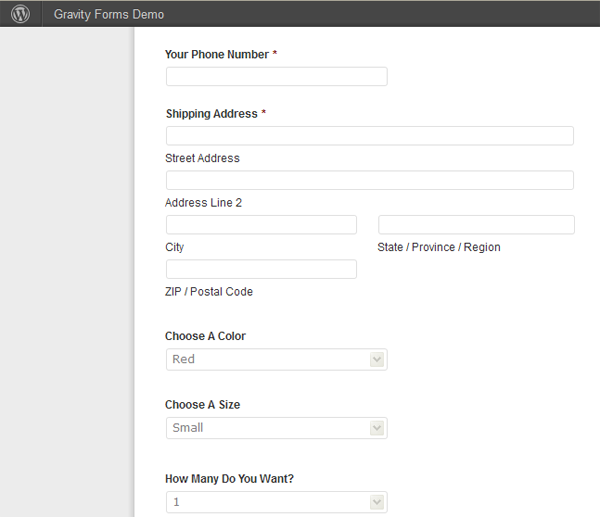
Set up Document
Step 1: Set up a template within a Word document. Within the template, use merge fields like {$FirstName}, {$CompanyName}, {$Amount} to capture an employee's information and an anchor tag to capture where a signature(s) should be placed \s1\.
Step 2: Upload the template to Formstack Documents. Select New Document, enter a name and choose "I have a document I would like to use" from the dialogue box and then select the file from your computer.
Note: You may also use a template or build from scratch right within the Formstack Documents app. See here for more information.
Step 3: Under the Settings tab, customize the settings to fit your file naming system.
Step 4: Select the New Delivery button in the Deliver tab and choose Formstack Sign from the list.
Step 5: Choose to Integrate with an external service from the "Choose where the data will come from" dialogue box and select finish to be taken to your uploaded document.
Step 6: After you authenticate your Formstack Sign account, optionally customize the email subject line using the signer’s name and email address using merge fields.
Connect to Gravity Forms
After you have updated your delivery, set up the process inside Zapier to integrate with Gravity Forms.
Step 1: Inside Zapier, click the New Zap button.
Step 2: For the trigger settings choose Gravity Forms as the service and then New Form Submission as the trigger.
Step 3: Authenticate your Gravity Forms account and set up the webhook with the provided Zapier steps.
Step 4: Set up the action of the Zap. For Service, choose Formstack Documents and pick Create Document Merge as the action.
Step 5: Authenticate your Formstack Documents account and choose the created template. Zapier will populate the list of all merge fields in the document.
Step 6: Pick the corresponding fields from your Gravity Form into the merge fields of your document.
Step 7: Once fields are matched, save your new Zap to turn the integration on.
Moving forward, submissions on the specified Gravity Form will send data over to your Formstack Document and then be sent to Formstack Sign for signature.
Have additional questions? Our Support team is here to help! Click the chat icon in the bottom right corner to start a conversation or submit a support ticket.
Or check out Professional Services to take on and create projects customized just for you! Schedule a consultation to get started.