
User Permissions allow you to grant Users in your account the access they need to have within the account. This lets you make sure a User only has access to their needed Folder and/or Forms and can't access those that don't apply to them. This guide discusses how and where you can edit these permissions for your Users.
Accessing User Permissions
To edit the permissions of your Users, you'll first want to log into your Formstack account as an Admin User. Once logged in, you will click the Person icon at the top right of the screen and select User Management on the dropdown that appears.
Note: Check out this document here for a general guide of how to edit your user or continue reading for specifics on managing user permissions.
This will bring up a list of the Users within your account. You can select the User that you'd like to edit the permissions on this screen or click the edit button and then "edit profile".
Now that the User profile page has been opened, you can scroll down and select from the various areas of permissions you see at the bottom: General Permissions, Folder Permissions, Form Permissions, Smart Lists, Theme Permissions, and Credentials Permissions.
Note: Form permissions will only appear if you've granted standard Forms access under the Access to Apps section.
General Permissions
General Permissions allows you to set what kind of access a User has over the entire account. If this user was set as an Account Admin, they will be given full access to all content within the account and will be able to create and edit Forms, Submissions, Themes, and other Users. This will also give them access to such areas as the Billing section, API access, and the Upload Manager. You can also use this section to grant your Users the ability to create Form and Themes.
IMPORTANT: As an Admin user, you have the option to reset data encryption passwords on encrypted forms. Doing so will also delete all of the submissions associated with that form. Click here for more information on Data Encryption. This feature can be disabled for an account upon request by the account owner.
Folder and Form Permissions
In these areas, you can set the rights Users have to specific Folders and Forms. There are three different types of permissions once a folder has been added:
-
View - Can view, search and download submitted data
-
View + Edit - Can view, search, download, and edit submitted data
-
Admin - Complete access to data, form builder, and settings
-
Folder Admins can add and modify user permissions of their folders
Smart Lists Permissions
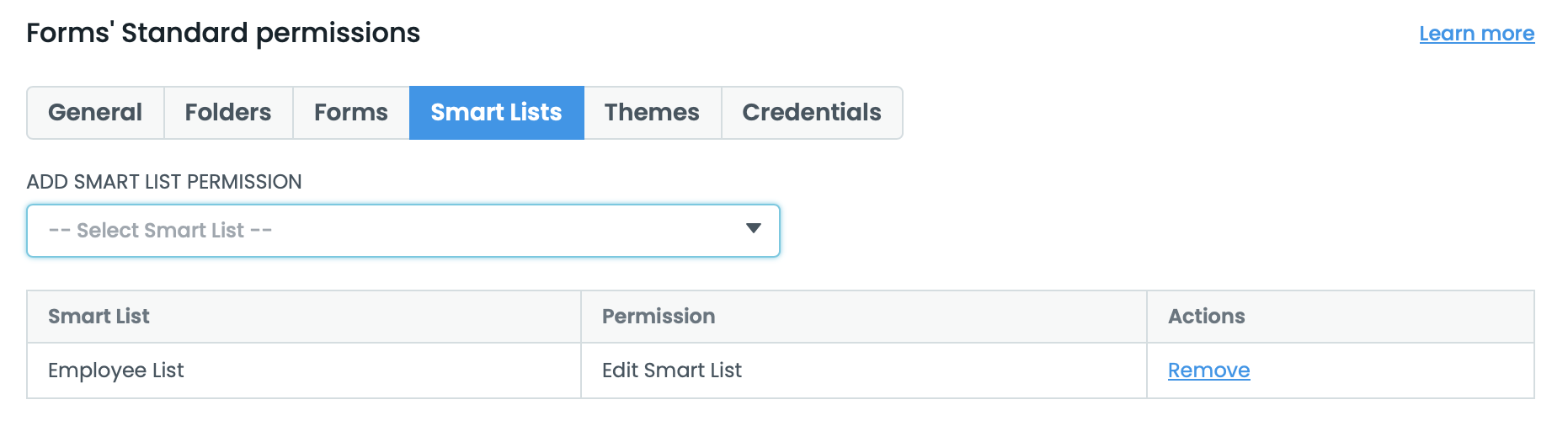
In this area, you can restrict the Permissions to certain Smart Lists to determine if the user can use or edit the Smart List itself.
Theme Permissions
In this area, you can restrict the Permissions to certain Themes to determine if the user can Use/Edit the theme or Use the theme only. You can also make it so the User has a default Theme every time they create a form.
Credential Permissions
Here, you can set permissions to give a User access to a particular integration on a form. Please note, at this time this only works for Box.com, Smartsheet, and Hubspot integrations.
Group Permissions
Group permissions lets you grant rights to an entire User Group, so that each of them will be given those permissions and avoid you having to go into each User to grant them individually. This can save a lot of time if you have multiple Users that should all have the same access. To gain access to Group Permissions, click the My Profile icon again and select Groups.
Then, much like with Users, you'll select the option to add a create a Group or you can modify previously created Groups as an admin.
If you've chosen to create a group, you'll follow the same steps to add permissions as with individual Users, selecting from the options on the bottom Global, Folder, Form, Theme, Smart Lists and Credentials Permissions. When permission is added, that will apply to all members that are within the group. From this page you can also add which users will have access to the folder.
Note: If a User is given conflicting permissions between their User and Group Permissions, the highest level will win out. This means if User A is given Form Admin permission on 'Test Form' but the Group they are a member of is given View Only rights to 'Test Form', they will have Form Admin permissions as that will override the Group Permission.